Friday, April 18, 2014

Infographic of 100 million Indian facebook users!

To celebrate the historical number of 100 million users, KRDS, a Social Media Agency in Europe and Asia and a member of Facebook's Preferred Marketing Developer Program, has created an infographic.
What’s the percentage of men and women using Facebook in India? What is their relationship status? What is the city wise distribution? How many of them are mobile, iOS or Android users? To find out, take a look at the infographic below.

Thursday, March 20, 2014

Facebook page Redesign – What’s new, what’s missing!


Well, it’s been a long time since Facebook has made significant changes in the “Page”. This time Facebook is planning to remove most of the clutter and help admin and users with the quick navigation options to most of the content they are looking for! You might not have received the updated Page as Facebook has recently started rolling out the changes (from 10th March)

Let’s take a quick look on what’s there in the new page layout. What is new and what is missing :)


1. Page timeline will look like your personal timeline


You no longer need to nod left and right to check the content of your page, you will see them on the right hand side similar to your personal timeline. This will save your time and make your timeline less cluttered.


2. Showcase your Business info more prominently 


Since the content has been moved to right hand side, the left hand column will be used for displaying your business information. You will have option to display operating hours, about company, website URL, Phone no as well as photos and videos.


3. Easy access to Admin tools

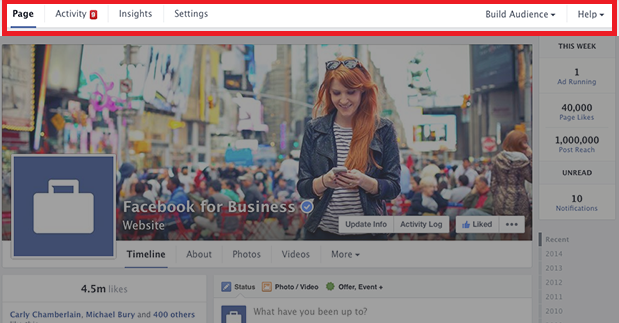
Earlier there was an option to access the admin tools from a push down menu and I personally feel that it was very annoying, now you’ll get admin navigation at the top that includes things like Page, Activity (notifications), Insights, Settings, Build Audience and Help. This navigation will exist no matter where you are within the page.


4. The Key Addition – THIS WEEK tab
This is my personal favourite; Page admin will get a quick sneak peak of their page activity in last one week. This will give info such as new likes, ads running, unread messages, post reach and page notifications.


5. Custom tabs

Did you fail to notice the custom tabs? No you didn’t! Actually Facebook has buried the custom tabs under “more” section. You (admin) and your audience will no longer be able to see the prominent custom tabs. This is a part of Facebook’s action of making the pages clutter free but it might not affect the way you get engagement on your page if you are not using lot of apps and tabs frequently.


Do share your feedback. Let's connect!


Wednesday, March 12, 2014

6 Secrets about LinkedIn that nobody will tell you!


The title of this blog is little catchy, right? Trust me, you will find the content equally interesting. We will discuss some secretive features about linkedin that many of us are not aware of. These features can help you to scale your linkedin profile to an altogether new level if used effectively. Now without wasting much time let’s start with the feature number 1 – Vanity URL

1. Vanity URL 

First of all let me help you people with what is vanity URL, if you’ll search Wikipedia you’ll find it as a URL or domain name, created to point to something to which it is related and indicated in the name of the URL, very similar to a personalized URL. But why do we need to have a vanity URL? Well, this will help people to search quickly about you on search engines like Google, if you have used your name properly on this URL you will rank higher!

Now try and check out your vanity URL for LinkedIn. You might not find it as catchy as mine right now! But you can make it even better. Just go to edit profile and click on edit as below.


After clicking on edit you’ll be redirected on a separate page to change your URL


2. Be Secretive – it’s not Facebook

How many times have you seen some trivial updates (10-20) about your friend’s profile on your LinkedIn newsfeed simultaneously? I have done this hell lot of times and I know how irritating this can be to your contacts sometimes. Let’s not use it like facebook where in you beam about each of your activities to your friends, this is LinkedIn and you have got some serious professional connections in here. So let’s behave accordingly. I am not saying that you don’t make frequent changes to your profile, just be secretive while you do it! Here’s how :)

Go to Privacy & Settings and then click on Turn on/off your activity broadcast. Once you have made those trivial changes to your profile just turn this on again!


3. Use your endorsements properly!

How many times have you received endorsements for skills for which you don’t wanna be known for? You might have done your summer project in Marketing Research or Recruitment but your current profile is in HR, Marketing or Sales and you want to portray yourself for those skills. By default LinkedIn will ask others to endorse you for skills for which you have highest numbers of endorsements in descending order. So, how to fix this? Go to edit profile, scroll down to Endorsements and Skills section and click on Edit. You will see below screen.


Now simply remove the skills for which you don’t want others to endorse you (even if you have very good number of endorsements for it). Also change the sequence of the remaining skills by dragging them in the order you want. Now your connections will be able to endorse you only for these skills.

4. Save on Premium account fees

Normally people use premium account to connect with the premium people or the connections which are not their 1st or 2nd degree connection as you can not send a connection request to them. Don’t worry, just make a long list of those premium people, try the LinkedIn premium account for 1 month which is absolutely free, connect with the people of your choice and deactivate it by the end of the month. You won’t be charged even a single penny! J

5. Use Mr. India Feature!

Now LinkedIn has this typical ‘Orkut’ feature which tells people about recent visitors/your visit to their profile and this is something that you dont’ want. So how not to get noticed


Now this feature comes with a catch, if you want to get unnoticed, you will also not get information about people viewing your profile. So use this feature when you want to see other’s profile and then again deactivate it so that you don’t miss out on your updates! J

6. Reorder your Content

LinkedIn has this beautiful feature of altering the order of your content in your profile. You can highlight what is best about your profile on first position followed by less important once. This is pretty simple. Just go to edit profile and use the following icon to move it upward or down.


Welcome to the world of LinkedIn, I am sure you would have liked this article, Do share your feedback (Good/Bad/Ugly) in the comments section.

Let's connect!
Linkedin & Twitter

Monday, March 3, 2014

Social Media Infographics - 2014


Twitter

· 560 million active users

· micro blogging social site that limits posts to 140 characters

· largest penetration in the US but spreading slowly and steadily

· 5,700 tweets happen every second

Facebook

· Social sharing site that has 1 billion users worldwide

· Largest opportunities communicating with consumers in a non-obtrusive way

· Users share 2.5 billion pieces of content each day

Google+

· 400 million active users

· Social network built by Google that allows for brands and users to build circles

· Not as many brands active but the ones that are tend to be a good fit with a great following

· Growing rapidly with 925,000 new users every day

LinkedIn

· 240 Million active users

· Business oriented social networking site

· Brands that are participating are corporate brands giving potential and current associates a place to
  network and connect

· 79% of users are 35 or older

Tuesday, February 25, 2014

Facebook Insights - Glossary

Facebook insights glossary


I think most of us use Facebook but are not aware about various terminologies that are being used or worse we don’t know the correct meaning of the terms and use the matrix in a wrong way! Here I will try to cover most of the terms related to Facebook. Do let me know if I have missed out on anything!

Total Reach:

The number of unique visitors who were served at least one impression of your content via Newsfeed, Ticker, Timeline or an Advertisement irrespective of the fact whether user has seen your content or not! (Confused? Keep reading)

Organic Reach:

The number of unique visitors who were served at least one impression of your content via Newsfeed, or Ticker irrespective of the fact whether user has seen your content or not! This matrix doesn’t include the paid ads.

Paid Reach:

The number of unique visitors who were served at least one impression of your content via Facebook ads (all types of FB ads are included), irrespective of the fact whether user has seen your content or not!

Total Impressions:

The total number of times your content was shown via Newsfeed, Ticker, Timeline or an Advertisement irrespective of the fact whether user has seen your content or not! A unique visitor may see the content more than once.

So if 100 users have seen the content 3 times each, the number of unique visitors will be 100 and total impressions will be 300.

Organic Impressions:

The total number of times your content was shown via Newsfeed, or Ticker irrespective of the fact whether user has seen your content or not! This matrix doesn’t include the paid ads. A unique visitor may see the content more than once.

So if 100 users have seen the content 3 times each, the number of unique visitors will be 100 and total impressions will be 300. But if 200 impressions were generated out of paid ads then the total organic impressions will be 100.

Paid Impressions:

The total number of times your content was shown via Facebook ads (all types of FB ads are included), irrespective of the fact whether user has seen your content or not!

Tab Views:

The number of times your Facebook tabs was viewed by a User. Facebook tabs are the custom tabs that can be added to your Page. Read this for more info.

Frequency Distribution:

A breakdown of number of times your content was served to users. If 100 users were served a total of 300 impressions then the frequency distribution will be 3.

Engaged Users:

The number of times a unique user clicks anywhere on the content irrespective of the fact whether that action resulted into a story or not.

Story:

A story is created when an action taken by a user results in the appearance of that post in his/her friend’s timeline, ticker etc.

For example if user A clicks (this could be a like, comment, share) on a post which is generated by a company named Flipkart. Now if this action appears in the newsfeed or ticker of his friend B then it’s known as a story.

Engagement Rate:

The percentage of unique users who Liked, Commented or Shared your content post an impression is served to them.

For example if the total impression of a post is 500 (unique users), the number of users who have clicked, liked, commented or shared your post is 100 then the engagement rate will be 100/500 * 100 = 20% Engagement rate.

Talking about this:

You must have noticed this on a Brand page. It is the number of unique users who generated story about your content.

Daily like sources:

The exact source from where user likes your page. It could be a brand page, like plug-in on website, ads, Recommended pages etc.

Tuesday, February 18, 2014

How to create custom tabs in Facebook (in just 5 minutes)?

Facebook page is the most widely used feature of Facebook by Brands, Celebrities, organizations etc as their second home on web (first is obviously their own website!). It allows them to stay connected with their fans by providing the latest updates about their products and services. 

One of the great features of having Facebook page is custom tabs – this allows you to load your own website/WebPages in the Facebook context. So the user doesn’t have to move away from the Facebook to know your offerings! There are many Applications and website which provides feature to create tabs, but it comes with lot of constraints and cost factor.

In this blog we will look at how to create the custom tabs. This is very simple – just follow the below mentioned steps and you will have your custom tab ready in just 5 minutes!

Step 1

Facebook Apps

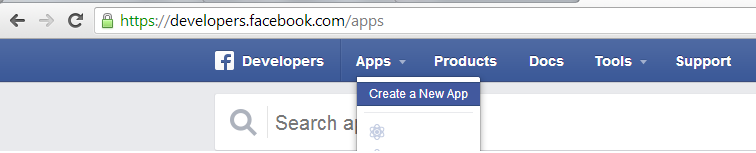
Click on the Apps and then click on Create a New App.

Step 2

Facebook create Custom tabs
  • Enter the Display name of your APP – this name will be visible to your visitors.
  • Add a unique Name space of your tab – Facebook uses this to identify your tab.
  • Choose the category of your tab.

Step 3
Click on the Settings link on left hand side navigation and then click on the “Add Platform” link.

Custom tab setting


On clicking the “Add Platform link you will see a below Pop up on your screen. Now click on the “page tab” icon – one with the flag.

custom tab

Step 4:

On clicking the page tab, you will notice the below screen. Fill in your details which are

  • Page tab name – name of your tab
  • Page tab URL – URL of the webpage/image that you want to host on Facebook. Make sure that your page width doesn't exceed 810 Pixel in width.
  • Secure Page tab URL – just use HTTPS in the URL so that people browsing Facebook securely can also view your tab
  • Page tab edit URL – this is optional. It is used if admin wants to edit the webpage. 
  • Page tab image (tab logo) – 111*74 pixels
facebook Custom tab attributes


Step 5 – The most important step

Once you have finished the formalities of informing Facebook about your tab, now it’s time to fit the tab in relevant Page. For this use below URL

www.Facebook.com/dialog/pagetab?app_id="your app id"&next="your pagetabURL"

Use your App id from the step no 3 (Screenshot) and your web page URL (the one that you have entered in step no 4. Now Copy paste this URL in your browser and hit Enter. You will notice below screen in your browser.

facebook Custom tab linking URL
Select the page you want to fit the tab with. That’s it! Your own custom tab is ready. 
Wasn’t it very easy?? :)

Wednesday, February 12, 2014

Facebook Call to Action Buttons

Well, we have always been cribbing about the facebook for not giving us an option to add a CTA (call to action) button in the page posts. Finally the facebook has heard our need/criticism and has come up with this interesting feature. However as of now this feature is available only with Facebook Power Editor. The most interesting thing in here is that this can be used in your paid ads as well as the organic posts of your page. Let’s take a look at how to use them with organic posts.

How to add call to action button in facebook?

Step 1
Open the power editor. Select the facebook page for which you want to create a post and then click on create post link.

Create post for Call to action in facebook
Create Post


Step 2 
Enter the details in the pop up window. You can add call to action button for posts containing links, photos, videos, offers etc in short for all kind of posts that you feed on your page. 

facebook call to action attributes
Post Attributes


  • URL - Enter the link URL 
  • Post text – Brief information about your post 
  • Call to action – You have multiple options to choose from. You can either select know more, Shop now, Book Now, Download, Sign Up 
  • Link headline – Use the text that best describes your link 
  • Display link – This line will appear below your link. One line description about your link 
  • Description – Here you can describe your link in more detail. Use it effectively so that readers click on your CTA 
  • Image – Upload a relevant image that will best describe your link. 
Once you have filled in all the details, hit create post. That’s it! You can also schedule your post from power editor or see a preview of your post.


This is how your post will appear in the news feed.

facebook call to action post in news feed
Post in News Feed
Do share your feedback on this!
Follow me on Twitter @mahinindia