Showing posts with label facebook tabs. Show all posts

Thursday, March 20, 2014

Facebook page Redesign – What’s new, what’s missing!


Well, it’s been a long time since Facebook has made significant changes in the “Page”. This time Facebook is planning to remove most of the clutter and help admin and users with the quick navigation options to most of the content they are looking for! You might not have received the updated Page as Facebook has recently started rolling out the changes (from 10th March)

Let’s take a quick look on what’s there in the new page layout. What is new and what is missing :)


1. Page timeline will look like your personal timeline


You no longer need to nod left and right to check the content of your page, you will see them on the right hand side similar to your personal timeline. This will save your time and make your timeline less cluttered.


2. Showcase your Business info more prominently 


Since the content has been moved to right hand side, the left hand column will be used for displaying your business information. You will have option to display operating hours, about company, website URL, Phone no as well as photos and videos.


3. Easy access to Admin tools

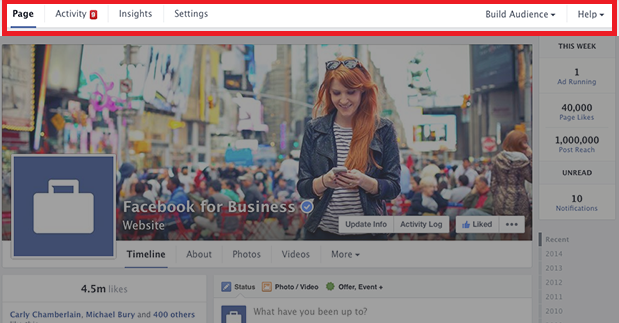
Earlier there was an option to access the admin tools from a push down menu and I personally feel that it was very annoying, now you’ll get admin navigation at the top that includes things like Page, Activity (notifications), Insights, Settings, Build Audience and Help. This navigation will exist no matter where you are within the page.

4. The Key Addition – THIS WEEK tab
This is my personal favourite; Page admin will get a quick sneak peak of their page activity in last one week. This will give info such as new likes, ads running, unread messages, post reach and page notifications.


5. Custom tabs

Did you fail to notice the custom tabs? No you didn’t! Actually Facebook has buried the custom tabs under “more” section. You (admin) and your audience will no longer be able to see the prominent custom tabs. This is a part of Facebook’s action of making the pages clutter free but it might not affect the way you get engagement on your page if you are not using lot of apps and tabs frequently.


Do share your feedback. Let's connect!


Tuesday, February 18, 2014

How to create custom tabs in Facebook (in just 5 minutes)?

Facebook page is the most widely used feature of Facebook by Brands, Celebrities, organizations etc as their second home on web (first is obviously their own website!). It allows them to stay connected with their fans by providing the latest updates about their products and services. 

One of the great features of having Facebook page is custom tabs – this allows you to load your own website/WebPages in the Facebook context. So the user doesn’t have to move away from the Facebook to know your offerings! There are many Applications and website which provides feature to create tabs, but it comes with lot of constraints and cost factor.

In this blog we will look at how to create the custom tabs. This is very simple – just follow the below mentioned steps and you will have your custom tab ready in just 5 minutes!

Step 1

Facebook Apps

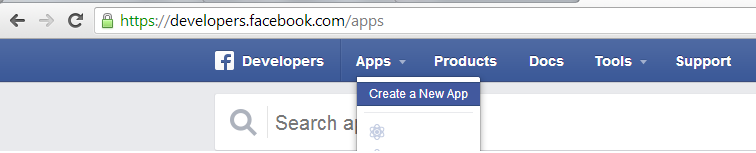
Click on the Apps and then click on Create a New App.

Step 2

Facebook create Custom tabs
  • Enter the Display name of your APP – this name will be visible to your visitors.
  • Add a unique Name space of your tab – Facebook uses this to identify your tab.
  • Choose the category of your tab.

Step 3
Click on the Settings link on left hand side navigation and then click on the “Add Platform” link.

Custom tab setting


On clicking the “Add Platform link you will see a below Pop up on your screen. Now click on the “page tab” icon – one with the flag.

custom tab

Step 4:

On clicking the page tab, you will notice the below screen. Fill in your details which are

  • Page tab name – name of your tab
  • Page tab URL – URL of the webpage/image that you want to host on Facebook. Make sure that your page width doesn't exceed 810 Pixel in width.
  • Secure Page tab URL – just use HTTPS in the URL so that people browsing Facebook securely can also view your tab
  • Page tab edit URL – this is optional. It is used if admin wants to edit the webpage. 
  • Page tab image (tab logo) – 111*74 pixels
facebook Custom tab attributes


Step 5 – The most important step

Once you have finished the formalities of informing Facebook about your tab, now it’s time to fit the tab in relevant Page. For this use below URL

www.Facebook.com/dialog/pagetab?app_id="your app id"&next="your pagetabURL"

Use your App id from the step no 3 (Screenshot) and your web page URL (the one that you have entered in step no 4. Now Copy paste this URL in your browser and hit Enter. You will notice below screen in your browser.

facebook Custom tab linking URL
Select the page you want to fit the tab with. That’s it! Your own custom tab is ready. 
Wasn’t it very easy?? :)